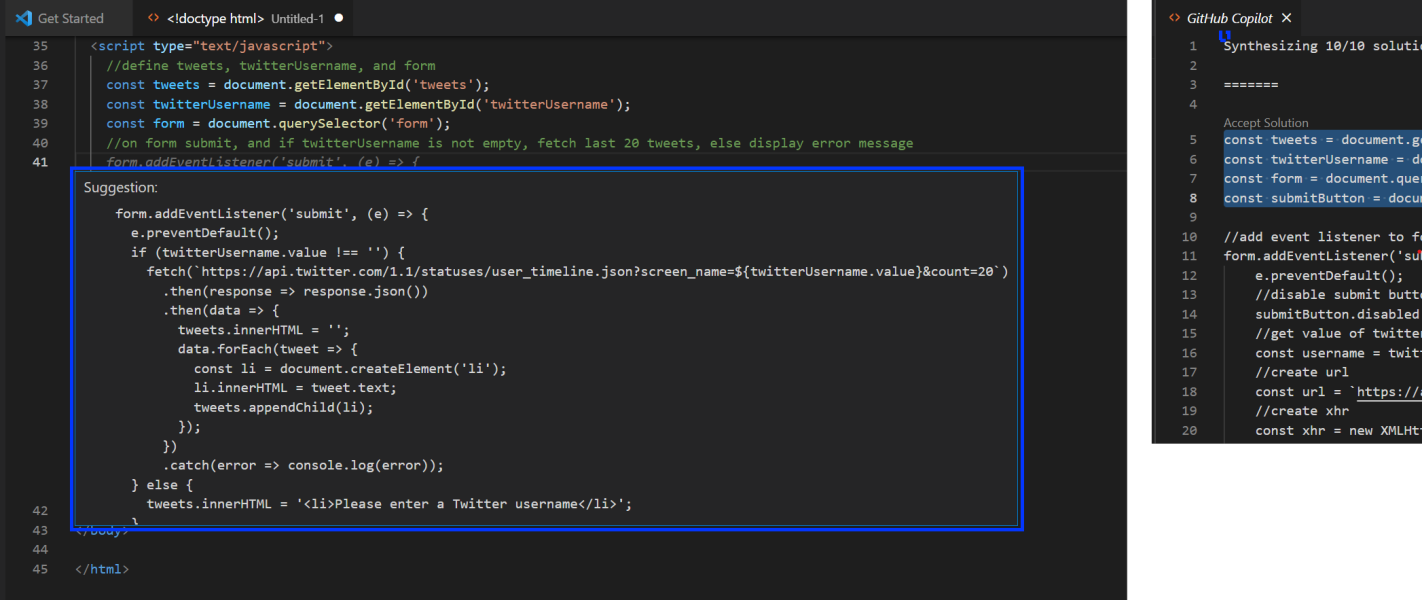
Technology moves fast. Just as the steam engine powered the third industrial revolution, AI is powering the fourth. And today, I want to talk about one AI-powered tool that’s not aimed at general users, but at software developers: GitHub Copilot.
Overview
Copilot was developed through a collaboration between GitHub, Microsoft (which owns GitHub), and OpenAI, the company behind GPT-3 and other text generation technologies.
Microsoft trained GPT-3 on billions of lines of code to create Copilot. It helps developers write functions based on several factors: comments in the code file, surrounding files, other functions, UI elements, and more. It reduces the effort of writing code and lowers the barrier for beginners entering the field, but it does not replace the developer.
To use Copilot, you need a GitHub account and the extension installed on a supported editor: Visual Studio Code, JetBrains IDE, Visual Studio, or Neovim.
You get a 60-day free trial, then it’s $10/month or $100/year.
Security
Microsoft has worked to filter and improve the suggestions, but the responsibility for security falls on the developer. You must review Copilot’s output for security issues, personal information, or inappropriate content.
Data Privacy
According to Copilot’s FAQ, Microsoft and OpenAI use your code to improve the service and generate personalized suggestions. Your code won’t be published or used in other software, and only specific people can access it. If you’re uncomfortable with that, you can disable data collection when you subscribe or through Copilot’s settings page on GitHub.
Microsoft also collects data on whether you accepted or rejected Copilot’s suggestions to improve quality. Unfortunately, you can’t opt out of that one.
Let’s Fly with Copilot
I’ll show examples using Copilot with Visual Studio Code.
Go to the Copilot page and select “Start my Free Trial”.
After completing the setup and privacy settings, download the extension from the VS Code marketplace.
If you haven’t linked the extension to GitHub before, you’ll see a notification asking you to sign in.
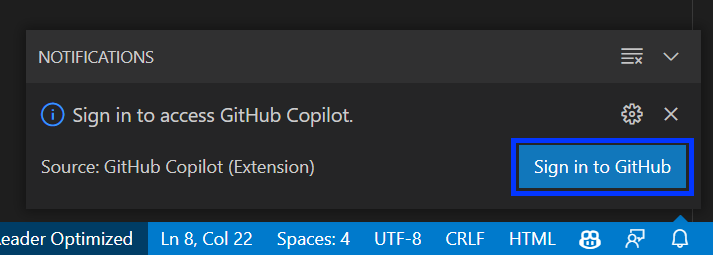
Click Sign In. The browser opens to complete the linking, then asks to reopen VS Code. Approve it.
JavaScript Experiments
In my experience, Copilot works best when you give it a specific comment or a clearly named function. To test this, I created a simple HTML page with a form containing a username input and a button to fetch the latest tweets from Twitter’s API.
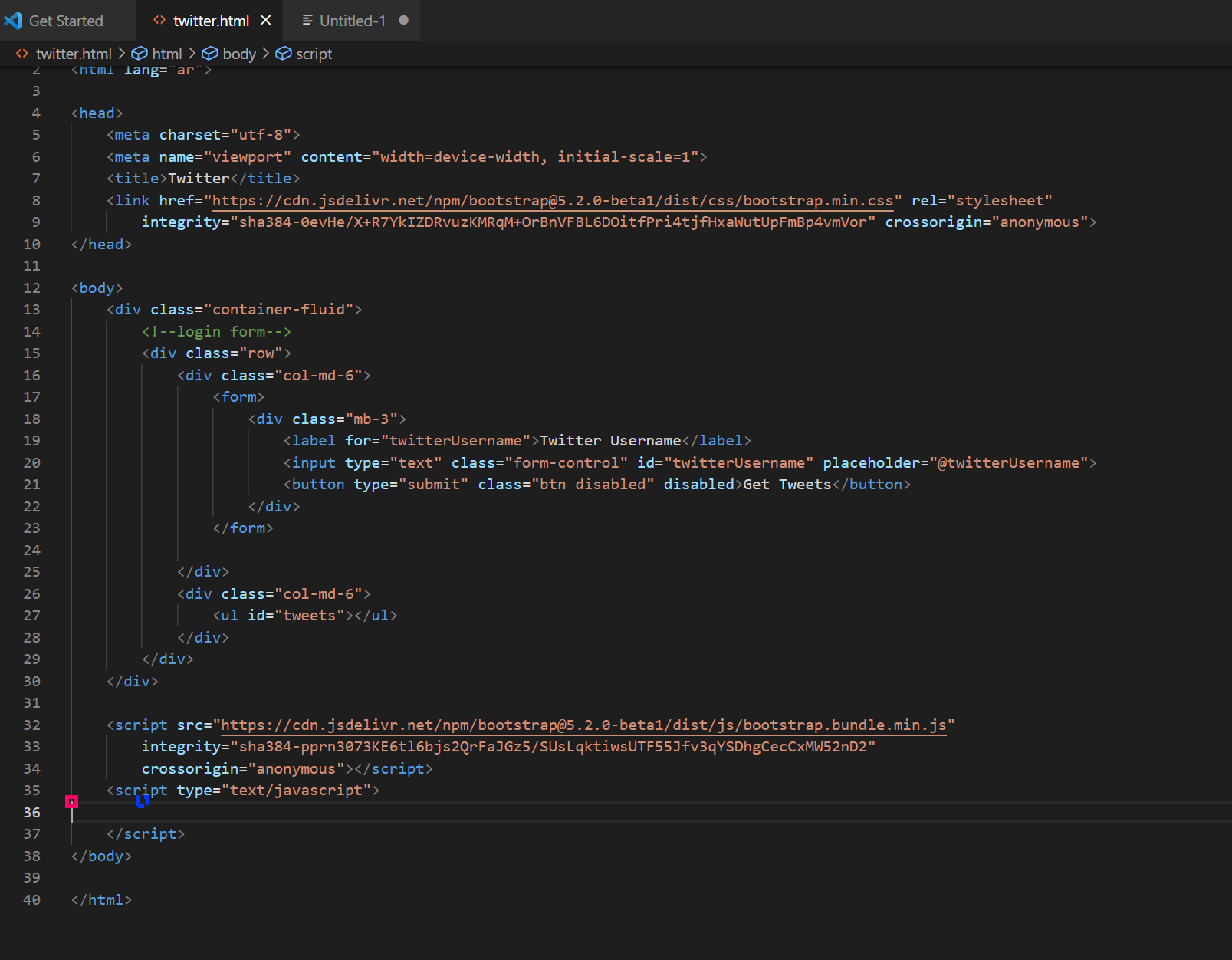
Using JavaScript, I wanted to create an event to fetch tweets and display them in a list, or show an error if the username field is empty.
I found that Copilot doesn’t work great with HTML, but performs well with JavaScript.
I wrote this comment in the Script element:
//define tweets, twitterUsername, form, and submit button
Copilot shows a list of suggestions you can navigate with Alt+] and Alt+[.
For screen reader users: you’ll hear a tone indicating suggestions are available. Use CTRL+k, CTRL+i to show them, then the shortcuts above to navigate.

When you find a suitable suggestion, press Tab to accept it. If nothing fits, press Escape and keep typing. Copilot’s suggestions improve as you write more. You can also view all suggestions in a separate file using CTRL+Enter.
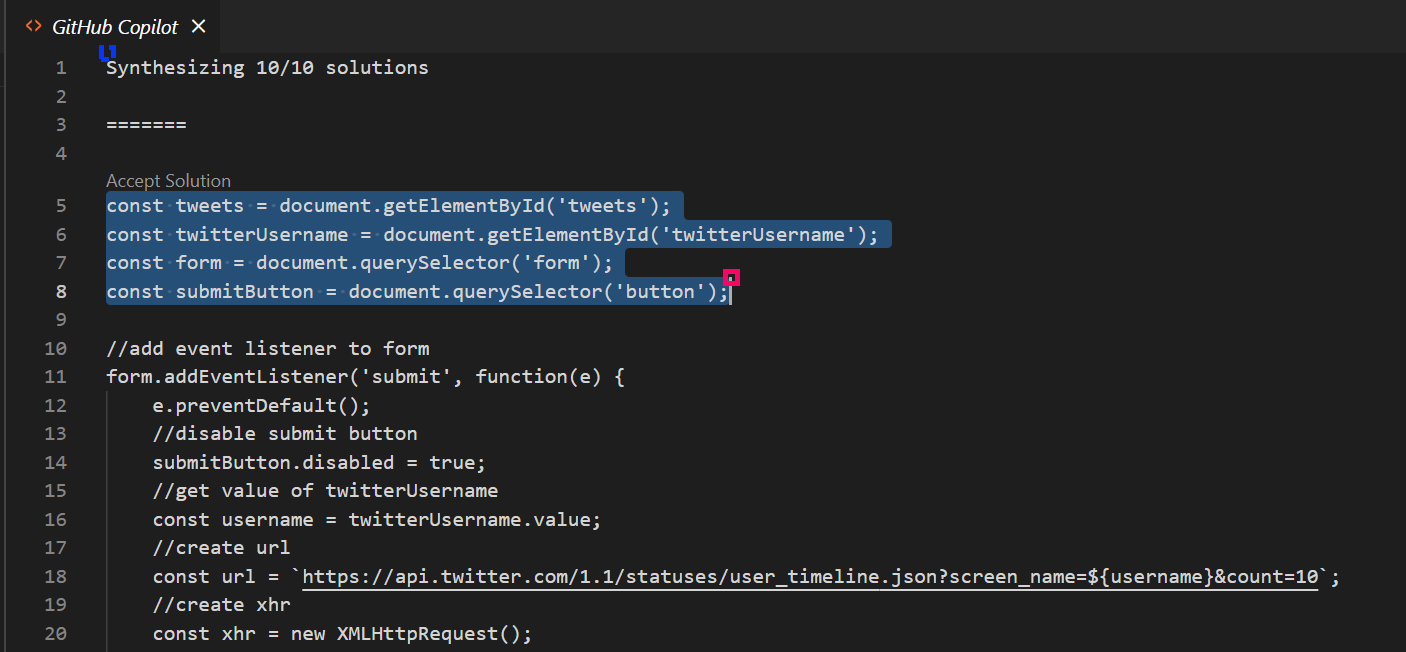
Notice that I took only the lines I needed from the suggestion and left the rest. The suggestion included a full event handler for fetching tweets, but that’s exactly what I meant when I said Copilot is your assistant, not a developer who replaces you. 😊
Fetching Tweets from Twitter
I wanted to try something bigger, so I wrote this comment:
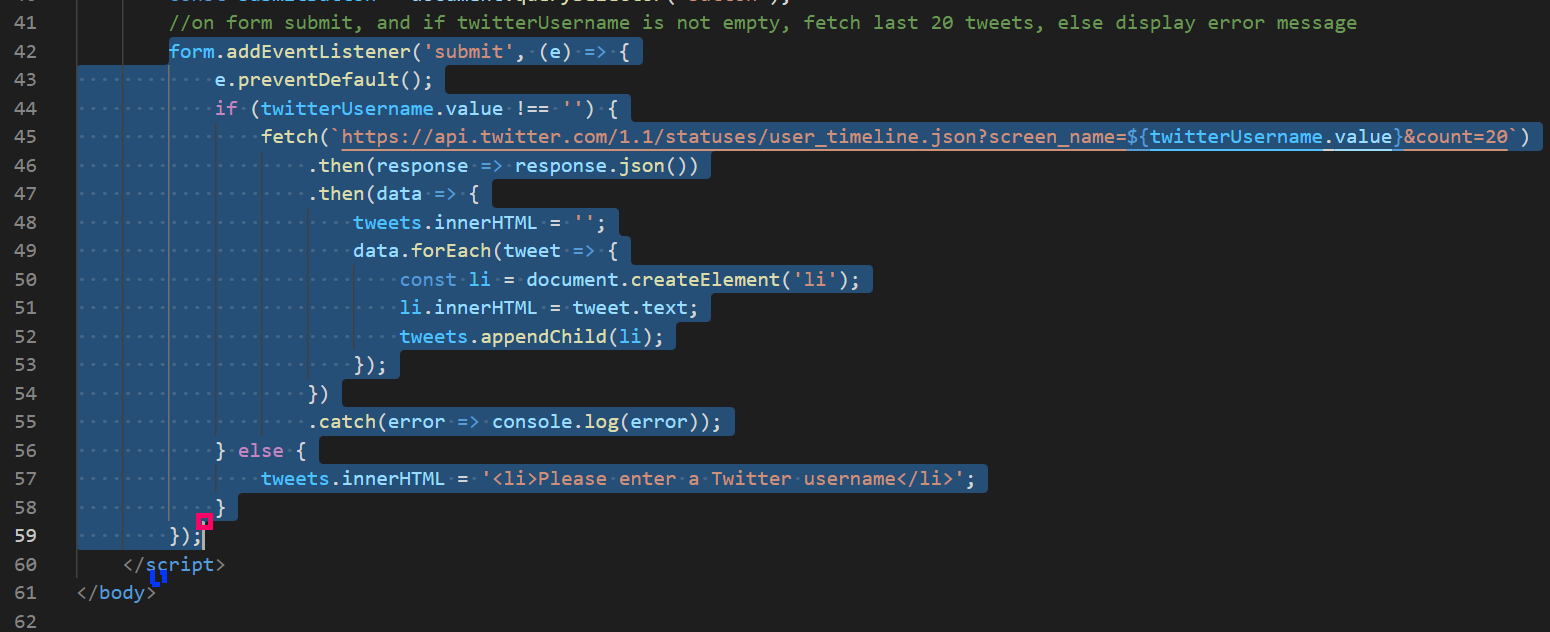
//on form submit, and if twitterUsername is not empty, fetch last 20 tweets, else display error message
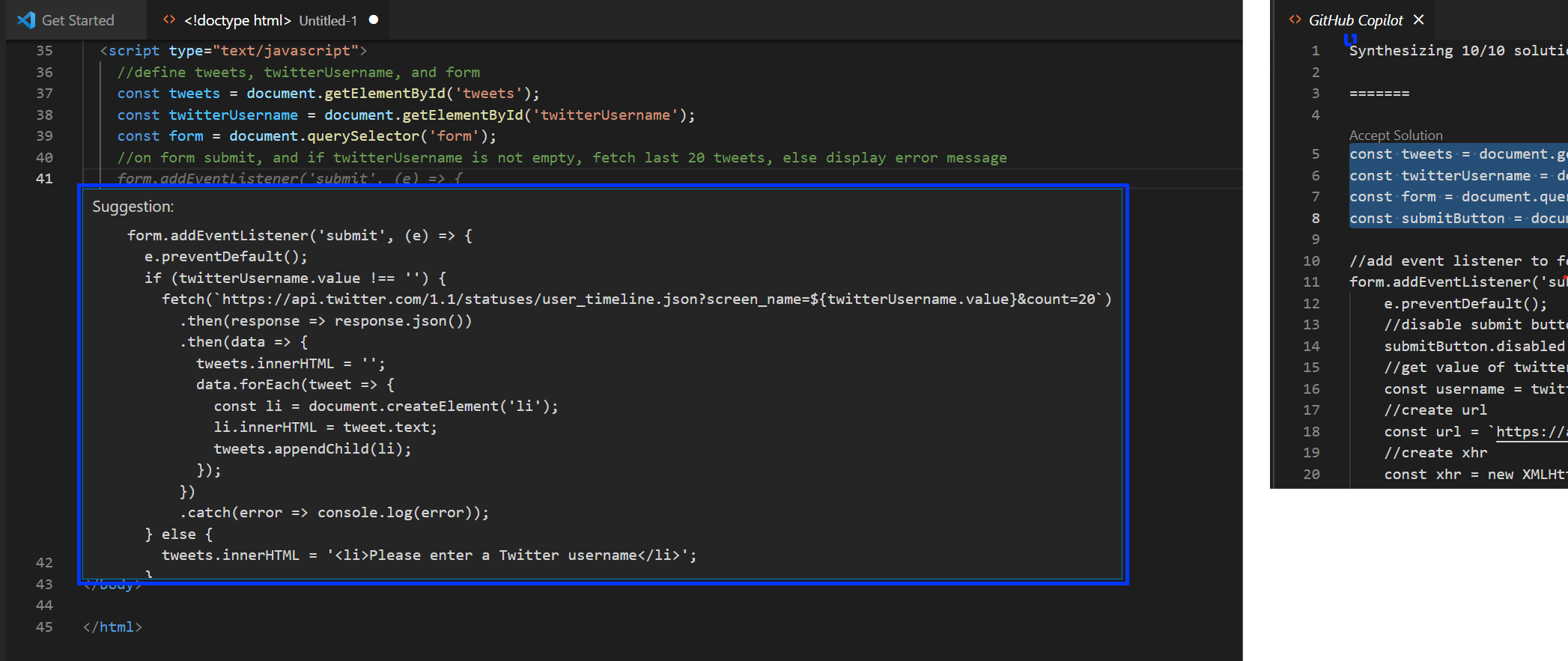
One Tab press later, Copilot wrote the entire function to fetch tweets from Twitter and populate the list.
Toggling the Submit Button
The clearer your comments, the more impressive the results.
I tried this comment:
//listen to onchange event. if input is not empty, make button enabled, remove disabled class, and add class btn-primary, else reset to disabled
Look at the phrase “else reset to disabled” in the comment. Copilot understood that it needed to:
-
- Set the disabled attribute back to true on the submit button.
-
- Add the CSS class “disabled” to it.
-
- Remove the CSS class “btn-primary” from it.
Adding Dates
Copilot can also help modify existing functions. In this example, I wanted to display the tweet date in Hijri (Islamic calendar) instead of Gregorian.

I wrote the comment inside the tweet-fetching function, specifically in the forEach loop. Copilot suggested modifying the loop code to convert the date.
Wrapping Up
The future holds a lot. AI technologies have made massive progress across many fields, and now they’re helping developers do their work.
I believe these tools encourage more people to enter this field, especially people with disabilities who face significant barriers due to the lack of accessible learning resources.
I’m still in the early stages of trying this service, and I’ll come back with an update after spending more time with it.
Until then, take care.
Comments
No comments yet.
Add a comment
Sign in to comment